
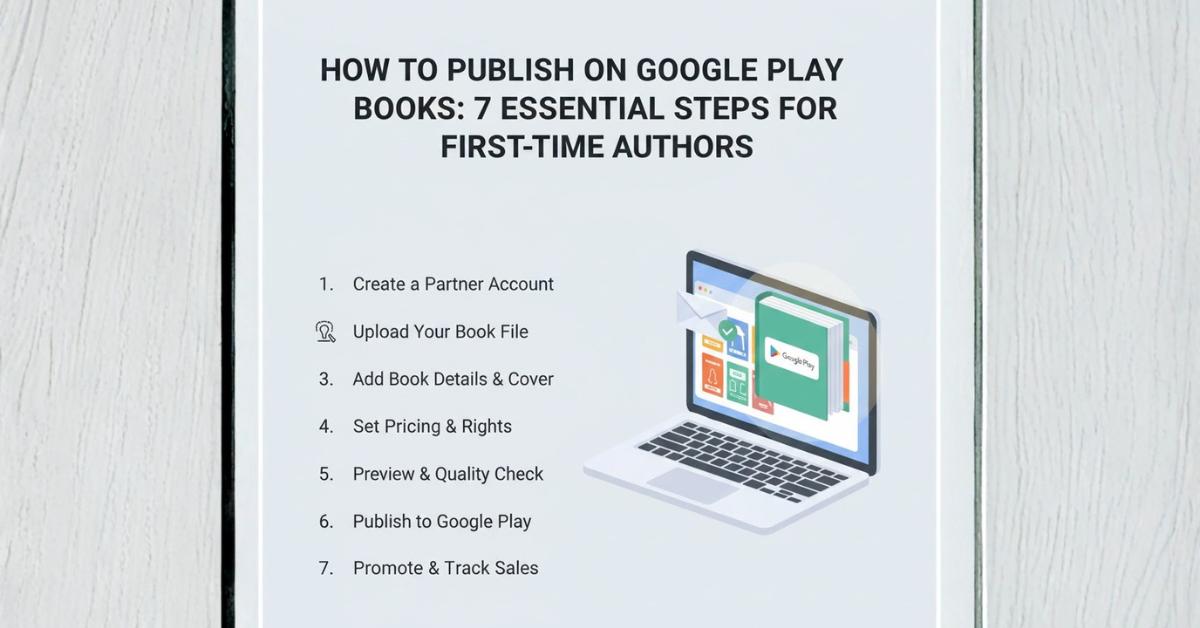
How to Publish on Google Play Books: 7 Essential Steps for First-Time Authors
If you’re researching how to publish on Google Play Books, you’re usually in one of two situations: you have a finished manuscript and want a straightforward way to sell it globally, or you’re already self-publishing and want to add another major storefront—especially one that reaches Android readers at scale.
The good news is that publish on Google Play Books is not complicated once you understand the workflow. Google uses a dashboard called the Google Play Books Partner Center where you add your book, upload files, set pricing and territories, and then publish. The confusing part for most authors is not the clicking—it’s knowing what to prepare, what choices matter (EPUB vs PDF, ISBN vs Google ID), and how long approvals can take for a new account.
This guide is written for U.S. authors and small publishers. You’ll get a clean, practical path from “manuscript ready” to “book live,” plus the most common issues and how to avoid them. Along the way, I’ll show where US Writers can help if you want your book description, metadata, and reader-facing copy to convert better once you’re listed.
What is the Google Play Books Partner Center?
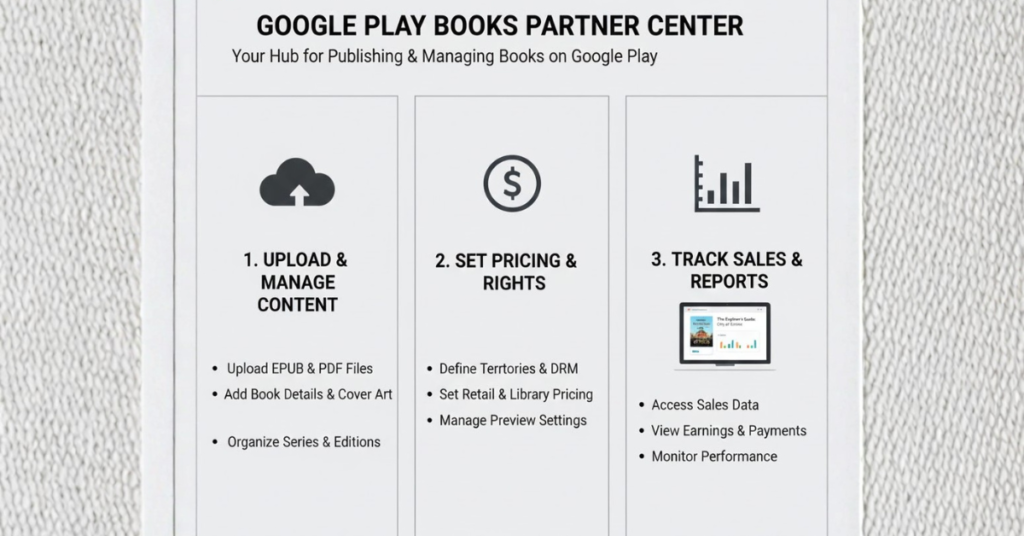
The Google Play Books Partner Center is Google’s publishing portal for Play Books. It’s where you manage your catalog, upload ebook files (like EPUB or PDF), set book details (metadata), and control availability and pricing.
If you’re serious about self-publishing on Google, everything starts here—because this is the system Google uses to store your files, validate them, and push your book to the Play Store.
Before you publish: what to prepare
You can absolutely publish quickly, but you’ll move faster if you have these items ready:
- Your book file
- For most ebooks: EPUB is typically the best option (more flexible for readers).
- PDF can work for fixed-layout content (like workbooks), but it’s less adjustable for different screen sizes.
- A cover image
- Usually a JPG or PNG cover file is required for a professional listing.
- Your metadata
This includes the basics:
- title and subtitle
- author name / contributors
- description (blurb)
- keywords and categories
- series info (if applicable)
- Pricing plan
- your base price
- which countries/territories you want to sell in
- Payment and tax readiness (US)
Google may require you to complete Payment Center steps and submit U.S. tax information through the Partner Center’s Payment Center flow.
You do not need to overthink these upfront, but you should know they’re part of the setup.
Step-by-step: How to publish on Google Play Books
Step 1: Create/access your Partner Center account
Start from the Google Play Books publishing page and proceed into the Partner Center onboarding.
Important note for new publishers: Google can place new publisher accounts in a preliminary review process when you publish your first book, and that review can take up to 30 business days. During that time you can add/edit books, but changes may not go live until review finishes.
That sounds intimidating, but it’s simply something to plan around if you have a launch date.
Step 2: Add your book in Book Catalog
Inside Partner Center, you’ll typically go to Book Catalog and choose Add book. Google’s Help Center outlines the “Add a single book” workflow clearly, including selecting default settings and the sell option.
This is where your “Google Play Books book publishing” process really begins.
Step 3: Choose your Book ID (ISBN or GGKEY)
This is one of the biggest questions U.S. self-publishers ask:
- Do you need an ISBN to publish on Google Play Books?
No—Google states an ISBN isn’t required to submit a book or sell it on Google Play. If you don’t have an ISBN, Google assigns an internal identifier with the prefix GGKEY.
If you do have an ISBN, you can use it (Google accepts both 10-digit and 13-digit ISBNs).
Practical advice: if you already own ISBNs and want consistent identifiers across retailers and print editions, use your ISBN. If you don’t, GGKEY keeps you moving without blocking publication.
Step 4: Upload your book file (EPUB/PDF) and cover
In the Partner Center upload flow, you’ll add your content file and cover. Google also supports revising and re-uploading files later if you update your manuscript.
Keep it simple:
- Upload the cleanest file you have (final proofread version).
- Ensure your cover looks professional at thumbnail size (most buyers see it small first).
- If something looks off in preview, fix it before publishing rather than rushing.
Step 5: Fill in book details (metadata that helps discoverability)
This is where many authors unintentionally reduce sales. Your listing is not just administrative—metadata is what helps Google understand who your book is for.
Key metadata fields you should treat seriously:
- Book description (blurb): Your #1 conversion asset on the listing.
- Keywords and categories: Help Google match you to search intent.
- Series info: If you write series, keep naming consistent for clean discovery.
- Contributor details: Use consistent author naming across your catalog.
If you want Google Play Books discoverability to work in your favor, write the description for real readers. In the U.S. market, clarity wins:
- Who is this book for?
- What experience or outcome does it deliver?
- Why should someone start this book today?
This is one place where US Writers frequently helps: rewriting blurbs so they read naturally, hit genre expectations, and improve click-to-buy behavior—without keyword stuffing.
Step 6: Set pricing and selling territories
Google Play Books lets you choose pricing and (where available) set selling in countries/regions. It’s normal for features to vary by region.
For U.S. authors, a practical approach is:
- Start with U.S. pricing you’re confident in.
- Expand territories once your listing is stable.
- Avoid constant price changes in week one—let the listing settle.
Step 7: Review, then publish
Once you’re satisfied with settings, you click Publish. Google’s help documentation notes the book will be published within 24 hours after publishing in the system (once your account is approved and the book is processed).
Also note timing for availability:
- Google indicates the first book from a newly approved Partner Center account may take longer (notably: “first book goes live in 7 days after the Partners Account is approved”), while new books can go live in 12–24 hours; most changes may reflect within about 12 hours.
The main planning takeaway:
- If you’re brand new, build extra time into your launch calendar.
- Once established, updates and new releases move faster.
How to update your book after publishing
One benefit of Partner Center publishing is that you can continue refining:
- update your description (for better conversion)
- adjust keywords/categories (for better discovery)
- re-upload corrected files (for typos, formatting fixes)
Google describes “In process” status and notes changes can take time to propagate.
A simple best practice: keep a revision log. If you change three things at once and sales shift, you won’t know what helped.
Pre-orders, discounts, and promo codes
If you want to build momentum, Google Play Books supports promotional tools such as promo codes and promotions (availability may vary by region).
This matters for U.S. authors because you can:
- reward your email list with a discount
- support launch week activity
- run limited-time promos without permanently lowering price
If you plan to use promotions, keep your messaging aligned: don’t run a discount without a clear reason and a simple call to action.
Payments and tax basics for US authors
Getting paid
Google explains that to receive earnings you set up a payment profile, and Electronic Funds Transfer (EFT) is the recommended method for direct deposit into your bank account (in local currency of the bank account).
U.S. tax information
Google provides steps in Partner Center’s Payment Center to submit U.S. tax information (and notes year-end tax form handling tied to W-9/W-8 information).
Important: This is not tax advice. If you’re unsure which form applies to you, it’s worth consulting a qualified tax professional. But operationally, you should expect to complete this inside Partner Center to avoid payment holds.
Common mistakes when publishing on Google Play Books
Many “Google Play Books issues” are preventable. The most common problems are:
- Rushing the description and metadata
A weak blurb can cut your conversion rate even if the book is excellent. - Uploading a file that hasn’t been proofed
Fixing typos later is possible, but first impressions matter. - Not planning for first-time account review time
If Google places your account in review, your launch timeline needs flexibility. - Pricing without a strategy
Price should match genre norms and book length; random pricing often underperforms. - Inconsistent author name / series naming
Consistency helps readers and algorithms.
Conclusion
Learning how to publish on Google Play Books is mostly about following a clean workflow: use the Google Play Books Partner Center, add your book, choose an ISBN or GGKEY, upload your files, set metadata and pricing, then publish. The biggest “success lever” isn’t a hidden trick—it’s making your listing clear and persuasive so readers understand your book fast and feel confident buying it.
If you want help polishing the manuscript, improving your description, or tightening your metadata so your Play Books listing converts better, US Writers can support you through the writing and launch assets—so your book looks professional and performs like it.
FAQs: How to publish on Google Play Books
1) How does Google Play Books publishing work for authors?
You publish through the Google Play Books Partner Center: add your book to the catalog, upload files, set metadata and pricing, then publish.
2) What is the Google Play Books Partner Center and how do I access it?
It’s Google’s publishing portal for Play Books. You start from the Play Books publishing page and proceed into the Partner Center account setup.
3) Do I need an ISBN to publish on Google Play Books?
No. Google states an ISBN isn’t required; if you don’t have one, Google assigns a GGKEY identifier for internal use.
4) What file formats do I need (EPUB vs PDF)?
Partner Center supports uploading ebook files such as EPUB and PDF; EPUB is typically better for reflowable text, while PDF can be useful for fixed-layout content.
5) How long does it take for a book to go live after upload?
Google notes that new books can go live in about 12–24 hours, while first-time accounts and first books may take longer depending on approval and processing.